You Have a PDF. You Need Real Measurements.
You have a set of plans, a floor layout, or a construction drawing in PDF format. You need actual measurements from it. Lengths, areas, counts. You do not want to print it out, grab a ruler, and start scaling things by hand.
Whether you are a contractor measuring blueprints for a bid, an architect verifying dimensions, a real estate agent calculating square footage, or a designer planning a renovation, the process is the same. Upload the PDF to a measurement tool, set the scale, and start clicking.
This guide walks through every step using Easy Takeoffs, a browser-based PDF measurement tool. Every screenshot below is from the actual tool. If you work with construction drawings specifically, our complete guide to measuring construction drawings covers paper sizes, scales, and manual methods in depth.
You can measure any PDF in your browser without printing or installing software. Upload your PDF to a measurement tool like Easy Takeoffs, set the scale (type it in or let auto-detection find it), then measure lengths, areas, and item counts with a click. Export to CSV or annotated PDF. This guide walks through every step with screenshots.
What Is a PDF Measurement Tool?
A PDF measurement tool is software that lets you measure distances, areas, and item counts directly on a PDF document. You set a scale, click points on the PDF, and the tool returns measurements in real units like feet, inches, or meters.
This means you skip printing entirely. No driving to a print shop, no paying $5 to $8 per sheet for full size prints, no spreading 24x36 inch paper across a table. You measure directly on the PDF with more precision than a ruler gives you, and every measurement is saved so you can pick up where you left off.
PDF measuring tools fall into three categories, each built for a different level of need:
PDF Editors
Fine for a one-off dimension check, but measurement is buried in menus with no way to organize results.
Online Tools
Handle quick single measurements, but no groups and limited multi-page support.
Measurement Tools
Purpose-built for full takeoffs with organized groups, annotations, multi-page support, and CSV or PDF export.
If you just need one quick dimension, a general PDF editor works fine. If you are measuring an entire plan set for a bid, a dedicated tool is the way to go. Easy Takeoffs is the lowest-cost dedicated PDF measuring tool with no feature restrictions, which makes it the easiest one to try.
What You Need Before You Start
Before opening any tool, make sure you have everything on this list. That is it. Nothing to download. Nothing to install.
What You Need to Get Started
Drawing, plan, or layout you want to measure
Usually printed on the plans (e.g., 1/4″ = 1′-0″) or a known dimension to calibrate
Chrome, Safari, Firefox, or Edge
14-day free trial, no credit card required
Step 1: Upload Your PDF
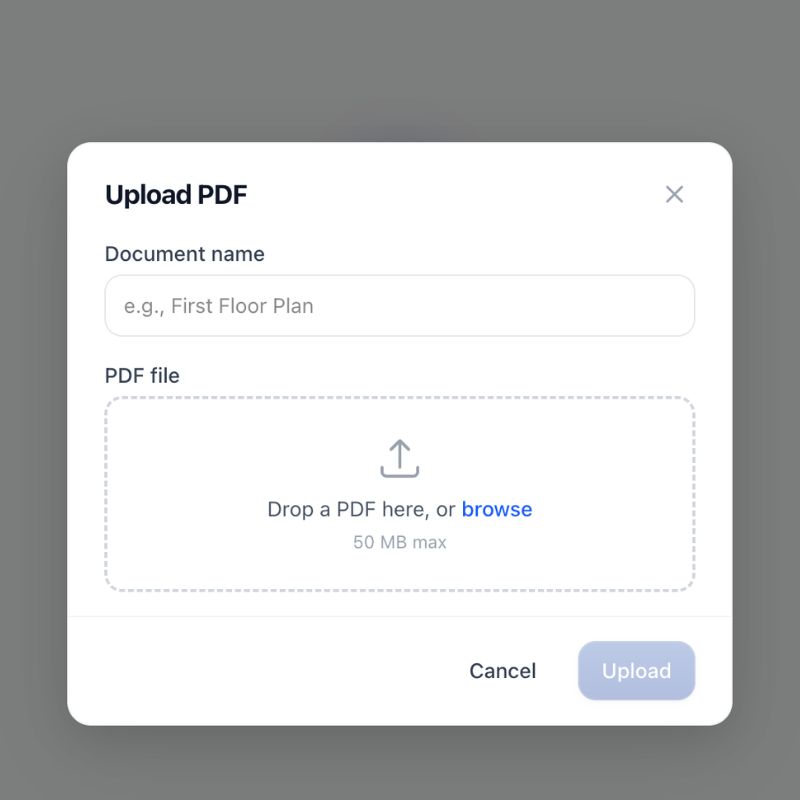
Head to Easy Takeoffs and start your 14-day free trial (no credit card required). Once you're in, create a new project and upload your construction plan PDF. You can drag and drop the file or use the file picker. When the upload finishes, click on the document to open it in the measurement tool.
Your PDF loads right in the browser with every page ready to go. Use the page list on the left to jump between sheets. Scroll to zoom in on details and click and drag to pan around the drawing. Even large multi-page plan sets load and scroll smoothly with nothing to install.
Step 2: Set the Scale
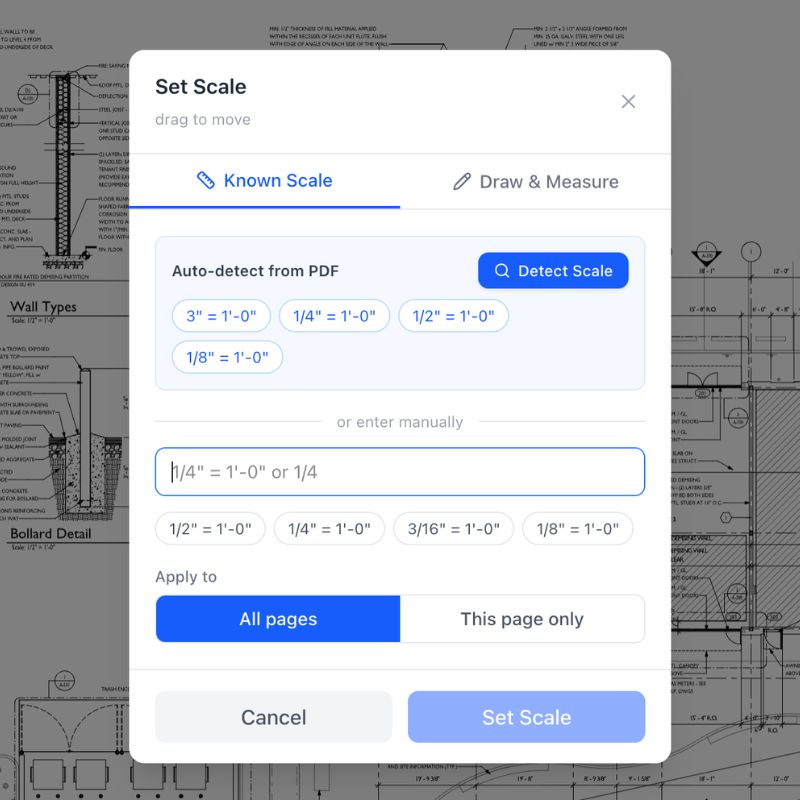
Scale is the single most important step. It defines the ratio between what you see on the PDF and the real world. A scale of 1/4" = 1'-0" means every quarter inch on the drawing equals one foot in reality. If the scale is wrong, every measurement you pull from the document is wrong by the same factor. There is no recovering from a bad scale after the fact.
Easy Takeoffs gives you four ways to set it:
Auto-detect is the fastest. When you upload a PDF, the tool reads each page for printed scale notation in the title block and offers it in the scale menu, where one tap applies it. One click on Set all pages automatically applies each page's own detected scale across the whole set in a single undoable run. This works reliably on clean CAD-exported PDFs where the scale text is embedded in the file. If it finds one, you will see it suggested right away.
AI reads it when there is no scale text to find. On scanned plans, photos of drawings, or any PDF without an embedded text layer, AI reads the scale printed on the sheet the way you would and suggests it for you to confirm. This is the case that used to mean measuring a known dimension by hand; now it is one tap to accept.
Select from the scale library if neither the text nor the AI reading lands one, or you want to set it yourself. Open the scale panel, start typing (like "1/4"), and an auto-suggest list shows standard architectural, engineering, and metric scales. Pick yours and you are done. Most plan sets print the scale in the title block of each sheet, so look for text like "SCALE: 1/4" = 1'-0"" near the bottom of the drawing.
Measure a known dimension as a fallback. Find something on the drawing with a labeled length, like a wall marked "24'-0"" or a scale bar. Click the two endpoints, type in the real distance, and the tool calculates the scale for you. It is also a good way to double-check an AI reading on a sheet where accuracy is critical.
Different pages often use different scales. A site plan might be 1" = 20' while the floor plans are 1/4" = 1'-0". Easy Takeoffs holds an independent scale on every page, so navigating between sheets never means recalibrating.
After setting the scale, always verify it. Measure a different known dimension on the drawing. If it matches within 1 to 2%, you are calibrated correctly. If not, recalibrate before you go any further.
The scale is the foundation of every measurement on the page. Get it right and everything else follows. Get it wrong and every number is off by the same factor. Always verify against a second known dimension before you start measuring.
Step 3: Measure Lengths
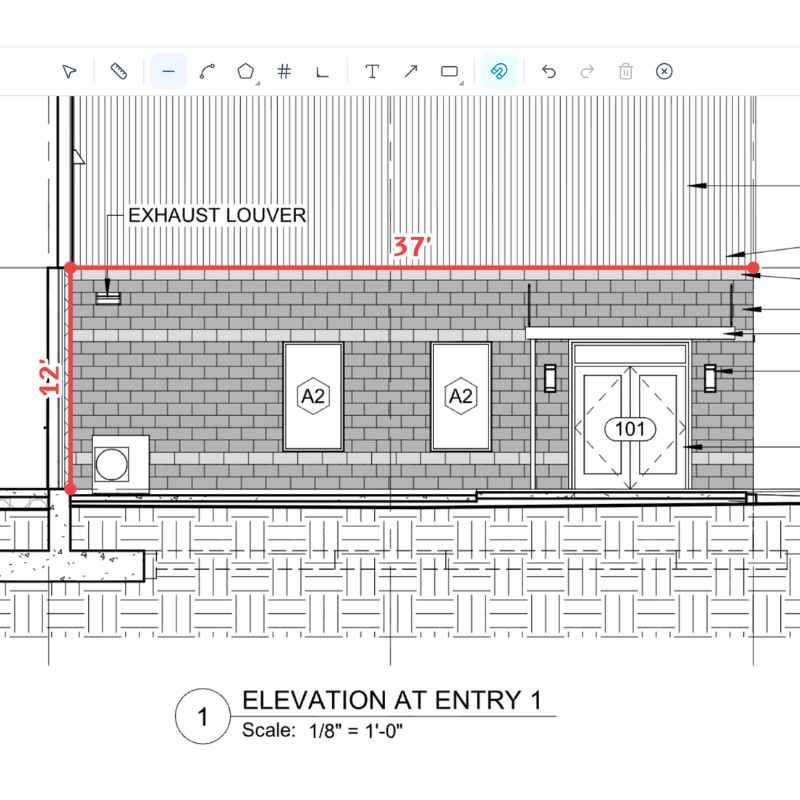
With the scale set, measuring a straight line takes two clicks. Select the Line tool from the toolbar, click the start point, then click the end point. The measurement appears instantly in real-world units.
For paths with turns, use the Polyline tool. Click each vertex along the path, then double-click or press Enter to finish. The tool adds up the total length automatically.
Snap to content is on by default. Your cursor locks to walls, corners, and endpoints on the PDF so you do not need to hit the exact pixel.
What would you measure with lines? Wall lengths for framing and drywall. Baseboard and trim runs. Pipe and conduit lengths. Fence lines. Any straight or multi-segment path that needs a total length.
For trade-specific linear takeoffs, see our drywall takeoff guide or browse measurement workflows for all 12 trades.
Step 4: Measure Areas
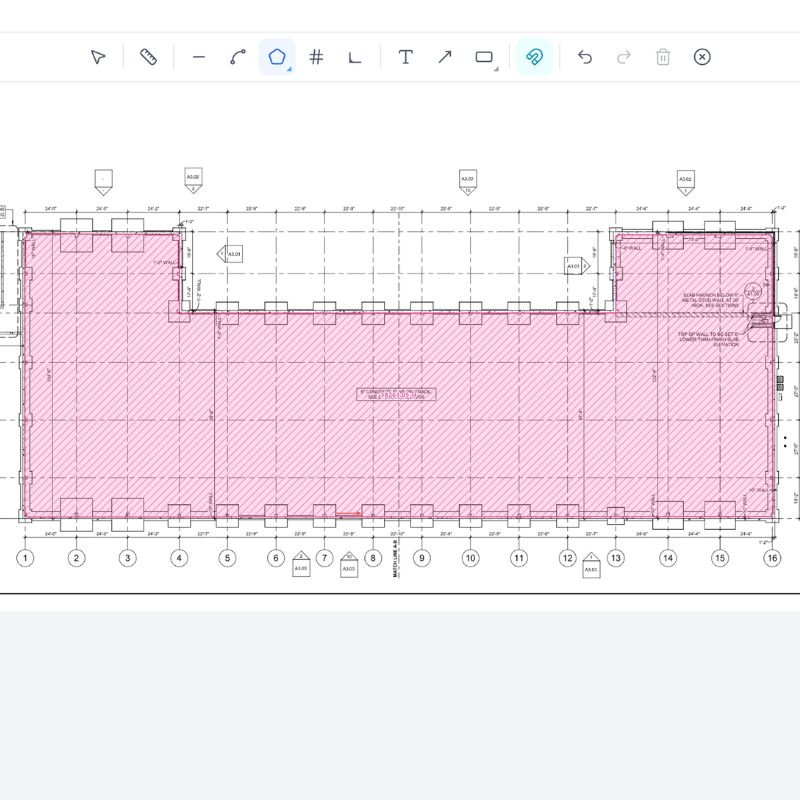
Measuring area works the same way. Select the Area tool, click the corners of the region tracing the perimeter, then double-click or press Enter to close the shape. Area and perimeter values appear instantly.
For simple rectangles, use the Rectangle tool. Two clicks (opposite corners) and you are done. The Area tool handles any polygon shape: rooms with bump-outs, L-shaped spaces, angled walls. For circular areas like columns, round rooms, or tank footprints, use the Circle tool, and when just one edge of a shape curves, bow that edge into a true arc instead of faking it with short straight clicks.
What needs area measurements? Flooring square footage. Painting wall and ceiling areas. Roofing surfaces. Concrete slabs. Landscaping zones. Anything priced by the square foot or square meter.
Step 5: Count Items
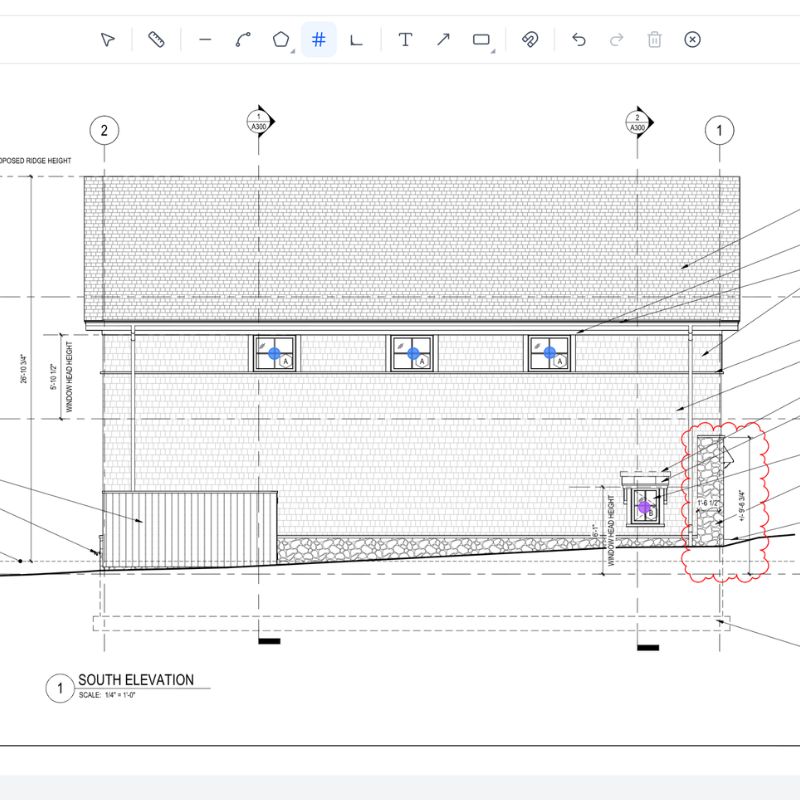
Some things don't need length or area. They just need a count. Select the Count tool, then click each item on the plan. A numbered marker appears at each location and the running total updates in real time. When the same symbol repeats across the set, switch Search to Symbol and draw a box around one example. Confirmed matches arrive checked by default with previews. Review or uncheck any result you want, then add the checked set as counts in one step.
Why does this beat highlighter on paper? Every mark is visible, numbered, and tracked. No double-counting. No faded marks. No losing track when you flip back across a 23-page plan set, and no page-by-page hunting when symbol search can sweep the whole set for you. Use counts for electrical outlets, light fixtures, windows, doors, sprinkler heads, plumbing fixtures, trees on a site plan, or any repeating item that needs a total.
Step 6: Organize and Export
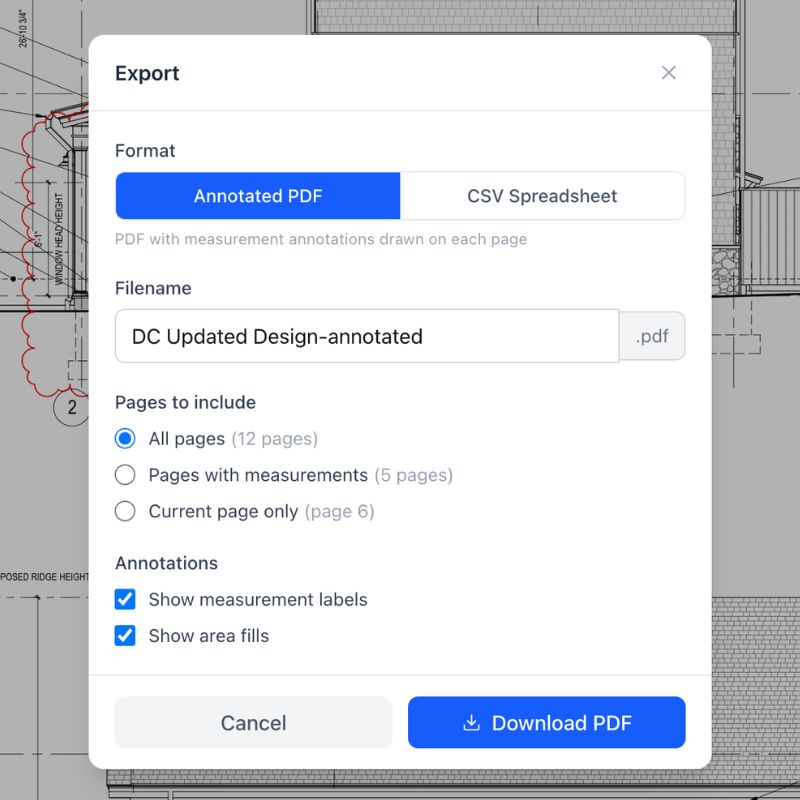
Once you have measurements, organize them. Create groups by trade, room, material, or floor. Each group gets its own color so measurements are visually distinct on the plan. You can toggle visibility, lock groups to prevent accidental edits, or solo a single group to focus on one scope at a time.
Groups support sub-groups and hatch patterns for area fills, so you can build the level of organization your project needs. You can also mark up the plans alongside your measurements with thirteen annotation tools (text, callouts, arrows, revision clouds, shapes, stamps, freehand, and highlighter). Eleven geometry and text tools reshape after placement, while freehand and highlighter use a partial-stroke eraser for corrections. Everything auto-saves as you work.
When the takeoff is done, export:
- CSV: All measurements in a spreadsheet with group labels, values, units, and page numbers. Plug it directly into your estimate.
- Annotated PDF: Your original PDF with all measurements and annotations overlaid. Print it for the field, send it to a client, or attach it to a bid.
If you need material quantities rather than just measurements, you can apply a material template to any group. Built-in templates for trades like drywall, concrete, roofing, and flooring automatically calculate sheet counts, fasteners, compound, and other materials from the measurements you already took.
What Mistakes Should You Avoid?
Estimating errors can result in a 30% decrease in bid win rates (Conwize, 2024). Most of those errors trace back to measurement, and most measurement errors trace back to one thing: the scale.
Here are the four mistakes we see most often:
The 4 Most Common Measurement Mistakes
Wrong Scale
Selecting the wrong scale or skipping it entirely. Every measurement on the page is wrong by the same factor. You won’t notice until you start pricing and the numbers don’t match reality.
Always verify against a labeled dimension after setting the scale.
Not Zooming In
Clicking endpoints at low zoom means you are off by a few pixels on every click. A few pixels at 1/4″ = 1′-0″ can equal several inches in real life. Over a full takeoff, those small errors add up and your totals drift from reality.
Zoom in until you can clearly see the lines and corners before clicking. Snap helps, but your accuracy improves significantly at higher zoom levels.
One Scale for Every Page
Different pages almost always use different scales. The site plan might be at 1″ = 20′, the floor plan at 1/4″ = 1′-0″, and the details at 1 1/2″ = 1′-0″. Using the floor plan scale on the site plan gives you measurements that are off by a factor of 80.
Set the scale on each page individually. Easy Takeoffs supports per-page scales for exactly this reason.
Skipping Verification
Setting the scale once and never checking it. Maybe you selected the right one, maybe you didn’t. You won’t know until it is too late.
After calibrating, measure a second known dimension. If it matches, you are good. If it doesn’t, recalibrate before measuring anything else.
The number one question we get from new users is "why are my measurements wrong?" Nine times out of ten, the answer is the scale. Every time. It's the single most important step in the entire workflow, and the easiest to get wrong when you are rushing through a plan set.
Frequently Asked Questions
What is the best PDF measurement tool for contractors?
Easy Takeoffs is the lowest-cost dedicated PDF measurement tool at $39 a month or $399 a year, and the 14-day free trial is the full product. It includes measurement tools for lengths, areas, and counts, scale calibration with auto-suggest and auto-detection, organized groups, annotations, and CSV/PDF export. Works in any browser on any device.
How do I measure distance on a PDF?
Upload the PDF, set the scale by typing it into the auto-suggest input or calibrating to a known dimension, then select the line tool and click two points. The real-world distance appears instantly. For multi-segment paths, use the polyline tool.
Can you measure on a PDF without expensive software?
Yes. Easy Takeoffs is the cheapest dedicated PDF measurement tool. Adobe Acrobat Reader has basic measurement in its free version. Online tools like FoxyUtils handle one-off measurements. For organized multi-page measurement with groups, annotations, and export to CSV or annotated PDF, Easy Takeoffs is the most affordable option built for the job.
How accurate are PDF measurements?
Accuracy depends on three things: scale calibration, PDF quality, and click precision. When the scale is set correctly on a clean vector PDF (exported directly from CAD, not scanned), measurements are essentially exact. Scanned PDFs introduce slight distortion depending on scan quality, but are still far more accurate than measuring a printed sheet with a ruler. Snap-to-content helps with click precision by locking your cursor to the actual geometry on the drawing.
What is the difference between a PDF measurement tool and takeoff software?
A PDF measurement tool measures distances, areas, and counts on any PDF. Takeoff software adds construction features: organized groups by trade, derived calculations like volume and wall area, and bid-ready export. Easy Takeoffs is both in one tool, at the lowest price in the category.
Start Measuring
The whole process: upload, set the scale, measure lengths, areas, and counts, organize into groups, export. Most people pull their first measurement within five minutes of signing up.
It is faster and more accurate than printing plans and measuring by hand. And it works on any device with a browser. Nothing to install, $39 a month after a 14-day free trial.
Try it on your next set of plans. Upload a PDF to Easy Takeoffs and pull your first measurement in minutes.
Next: Read our complete guide to measuring construction drawings for scales and drawing types, check out the best apps for contractors beyond takeoff, or browse measurement workflows by trade.