AI Auto Scale Detection
for PDF Construction Plans
The fastest way to calibrate construction plans. Every sheet's scale is read for you, even on scanned drawings: one tap confirms it, and one run sets the whole set. Type your own scale or measure a known distance when needed.
How to Set Scale on PDF Construction Plans
Upload Your Plans
Drop your PDF into the browser. Every page renders at full resolution. Multi page plan sets load just like singles.
Tap the Detected Scale
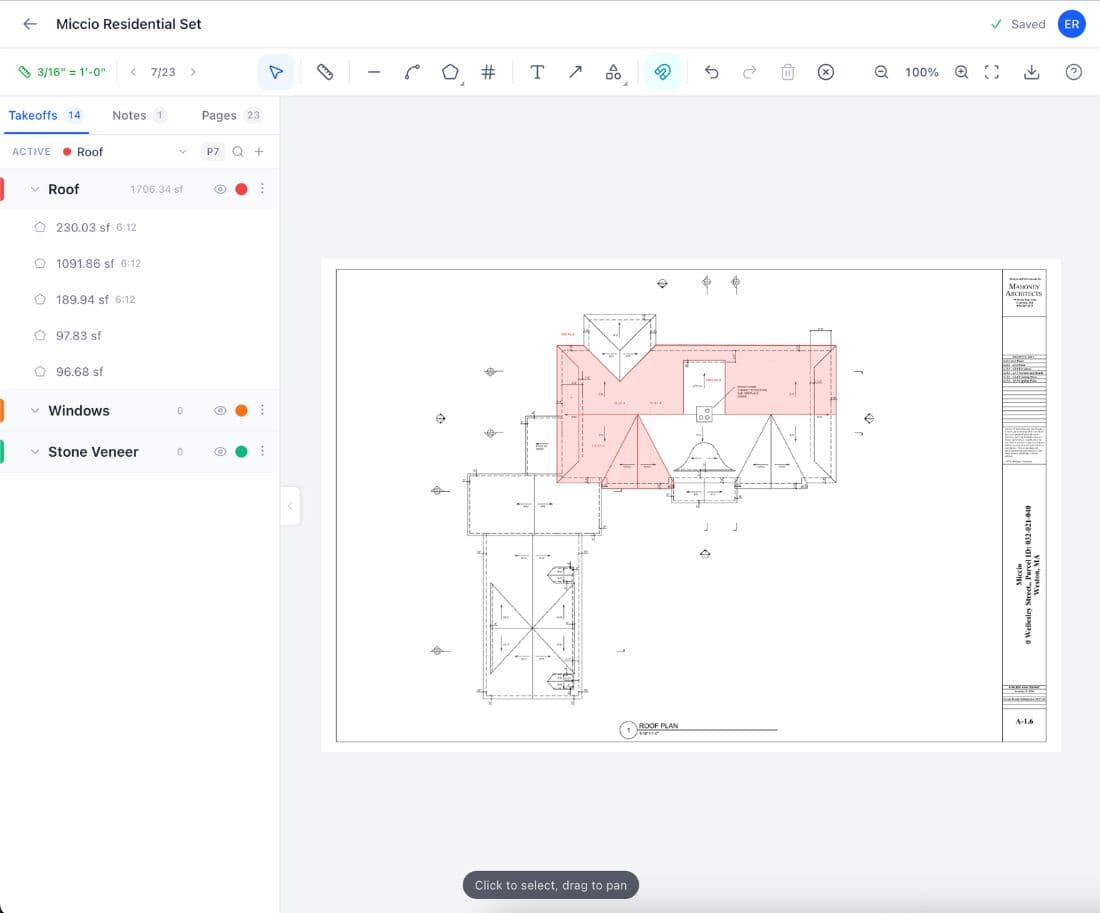
The scale chip in the toolbar opens a menu of each page's scales, including the ones detected on the sheet itself. AI reads sheets with no scale text. One tap applies your pick to the page.
Or Set Every Page at Once
On a big set, choose "Set all pages automatically" and each page applies its own detected scale in one live run, with progress you can watch, a Stop that keeps what landed, and a single undo. Type a scale or measure a known dimension for anything the sheet does not give you.
Start Measuring
The scale you set applies to every measurement tool: lines, polylines, areas, rectangles, and counts. Every measurement remembers the scale it was drawn against, and Scale Check warns you if a page's scale ever contradicts its sheet.
Why Scale Accuracy Matters
Scale is the one setting that every measurement depends on. If the scale is wrong, every line, every area, and every count position inherits that error. A floor plan drawn at 1/4" = 1'-0" but measured at 1/8" = 1'-0" doubles every dimension on the page. A 40 foot wall becomes 80 feet. A 1,200 square foot room becomes 4,800. The mistake compounds silently across the entire sheet, and you do not find out until field measurements contradict your takeoff or the material order arrives at twice the quantity it should be.
Research by the Construction Industry Institute found that projects with thorough front-end planning, which includes accurate quantity takeoffs from correctly scaled drawings, experience 20 percent lower cost growth than projects that skip this step. Scale calibration is where front-end planning starts. Easy Takeoffs handles the most common case for you by reading printed notations directly from the PDF text layer and offering them in the scale menu, where one tap applies the sheet's own scale, and one run applies every page's detected scale across the whole set. On sheets with no scale text to read, like scanned drawings or photos of plans, AI reads the scale off the drawing and suggests it for you to confirm, so the case that used to mean calibrating by hand is handled too.
Whether your drawings follow the scale notation conventions defined by the National Institute of Building Sciences or use a custom format, the workflow is the same: upload, verify the detected scale, and start measuring. The line measurement tool and area measurement tool both pull their unit conversions from the scale you set. Every page stores its own scale independently, so a plan set with floor plans at 1/4" and site drawings at 1" = 20' reads correctly across every sheet.
Takeoff Tools Built for Every Trade
From flooring to full ground up builds, Easy Takeoffs handles the measurements your trade demands. Built for every trade, $39 a month.
Four Ways to Calibrate, One Accurate Result
Detection reads most drawings, AI covers the scans, one run can set the whole set, and typing or measuring a known dimension covers everything else.
Detected Scales in a One-Tap Menu
Soon after a document opens, detection reads every sheet in the background: exact printed notations first, like 1/4" = 1'-0", 1:100, or 1" = 20', with AI reading as the fallback. Everything found lands in the scale menu on the toolbar chip, labeled by where it came from (Detected, Measured, or Typed), and one tap applies it to the page. Nothing is ever applied without your click, so the scale your numbers ride on is always one you chose.
AI Scale Reading
When a sheet has no scale text to read, like a scanned drawing or a photo of a plan, AI reads the scale printed on the sheet the same way you would and suggests it for you to confirm. This is the fallback for the case that used to mean calibrating by hand: an as-built with no title block scale, a marked up field set, or a PDF that is really just an image. Text detection still runs first, so a clean CAD export never waits on AI.
Set All Pages Automatically
One action scales the whole set: every page with a detected scale applies instantly, and pages whose detection is still settling apply as the results land, with live progress and a Stop that keeps what was applied. It never overwrites a page you scaled yourself, pages that finish with nothing detected get a jump link to set by hand, and the entire run reverses with a single undo. Built for 200-page sets.
Type It or Measure It
Type any scale exactly as your title block shows it: architectural like 1/4" = 1'-0", engineering like 1" = 20', ratios like 1:75, even bare shorthand like 3/32. The parser reads it instantly. And when a sheet gives you nothing to type, calibrate from the drawing itself: click two points on a known dimension, enter the real length, and the derived scale applies to that page. Matches against standard architectural, engineering, and metric tables name the value you calibrated.
Scale Check
The most expensive quiet mistake in a takeoff is measuring at the wrong scale. When a page's applied scale contradicts a scale detected on that sheet, the scale chip turns amber and a small card names both, with one tap to apply the sheet's scale and one tap to keep yours. Every measurement also stores the scale it was drawn against, so a later scale change never silently shifts numbers you already verified. The Pages tab lists each page's applied scale for review.
Not To Scale Detection
The engine reads the drawing for "Not To Scale," "NTS," and "N.T.S." markers. When it finds one, the page is flagged with a warning before you try to measure. This prevents you from spending time on measurements that would be inaccurate because the geometry was drawn for visual clarity, not dimensional accuracy. Dimension strings printed on NTS details are still the intended values, but scaling the drawing will not reproduce them.
Why Wrong Scale Ruins Every Measurement
Scale errors are silent multipliers. Here is how they show up on real projects.
The Scaled to Fit Trap
You open a PDF that was printed with "Fit to Page" enabled. The drawing looks normal. The title block says 1/4" = 1'-0". But the print driver shrunk the entire sheet by 3 to 5 percent to fit the paper margins, and the actual pixel ratio no longer matches the stated scale. Every measurement you take is off by that same percentage. On a 200 foot building, 5 percent is 10 feet. You will not notice until field measurements come back different from the takeoff.
Different Scales on Different Sheets
Sheet A-1 is a floor plan at 1/4" = 1'-0". Sheet A-5 has enlarged restroom details at 1/2" = 1'-0". You set the scale once for the floor plan and forget to change it when you flip to the detail sheet. Every measurement on A-5 is now half the correct value. The tile order for the restroom comes in at 120 square feet instead of 480. You find out when the installer runs out of material on the first morning.
Checking Every Page by Hand
You have a 30 page plan set. Five pages are architectural at 1/4". Three are structural at 3/16". Two are civil at 1" = 20'. The rest are details at mixed scales. Before you measure anything, you need to check the title block on every page, find the scale notation, and enter it manually. That is 30 interruptions before you draw a single line. On large projects with addenda and revised sheets, the scale on a reissued page might have changed without a callout.
No Scale Notation on the Drawing
The architect did not print a scale on the sheet. There is no scale bar, no notation in the title block, and no reference in the cover sheet legend. You guess 1/4" based on what looks right, measure a few walls, and compare against a door width you assume is 3 feet. The numbers are close but not exact. You do not know if the gap is from the scale, the snap accuracy, or the drawing itself. Every measurement carries a question mark.
PDF Scale Detection Questions
Start Your Construction Takeoff Today
Upload your first PDF plan set, set the scale, and pull accurate quantities before lunch. $39 a month after the trial, less than every dedicated competitor.