PDF Area Measurement Tool
for Construction Plans
Trace the outline of any space on your construction plans and get instant square footage. Polygons for irregular shapes, rectangles for quick rooms, snap to content precision, and running totals that update as you work. No install, works in your browser.
How to Measure Area on PDF Construction Plans
Upload Your Plans
Drop your PDF into the browser. Every page renders at full resolution. Multi page plan sets load just like singles.
Set the Scale
Easy Takeoffs reads the scale notation from your drawing automatically, and AI reads it off scanned sheets. No match? Pick from common scales or type in the scale from your title block.
Trace the Area
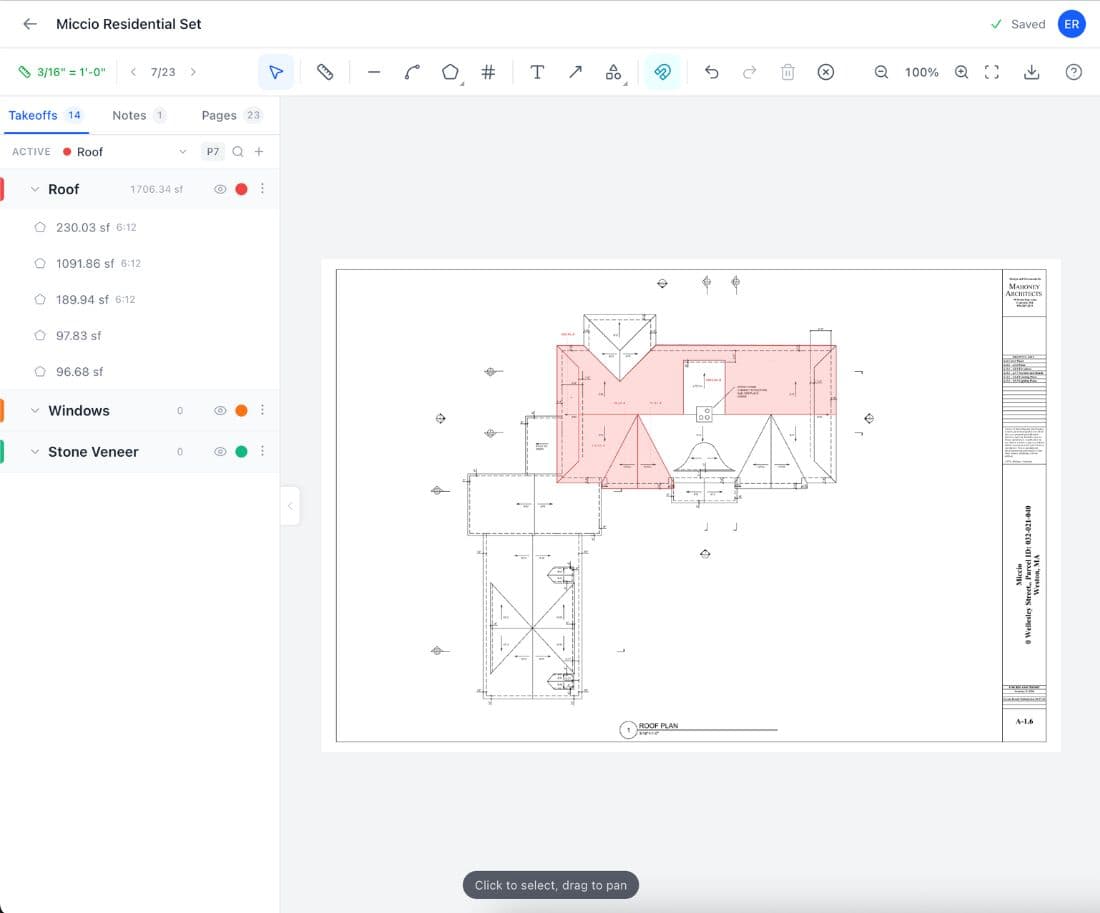
Select the area tool and click each corner of the space. For rectangular rooms, use the rectangle tool and click two opposite corners. The square footage appears instantly.
Read the Result
The area appears on the canvas and in the sidebar. Group totals update as you trace more areas. Export to a spreadsheet or marked-up plan set when you are done.
Why Accurate Area Measurement Matters
Area measurement is the starting point for every material order that covers a surface. Flooring, paint, drywall, ceiling tile, insulation, roofing, concrete slabs, and waterproofing all begin with a square footage number pulled from the plans. Get that number wrong and the consequences ripple through the entire project. Over-order by 10 percent and you absorb the cost of returns, restocking fees, and wasted storage space. Under-order by 5 percent and the crew sits idle while the next pallet ships. McKinsey research found that large construction projects can run up to 80 percent over budget, with inaccurate quantities from the plans among the most common contributors.
Easy Takeoffs gives you polygon and rectangle tools that calculate real square footage directly from your PDF drawings. The snap engine locks your cursor to walls and corners so your traced outlines land exactly on the intended boundary. Running totals per measurement group update with every area you trace, and color coding keeps flooring separate from painting separate from demolition. When the bid is due, you export your quantities to a spreadsheet for estimating or a marked-up PDF for the bid package.
Whether you are calculating flooring coverage per ASTM F710 subfloor standards or measuring gross building area using ANSI/BOMA Z65.1 measurement methods, the workflow is the same: set the scale, trace the outline, read the number.
The cost of getting area wrong shows up downstream in ways that are hard to trace back to the plans. A 2021 study by Autodesk and FMI found that bad project data cost the global construction industry an estimated $1.85 trillion in a single year, with $88.69 billion of that spent on rework driven by decisions made on inaccurate information. Wrong square footage is one of the most common forms of bad data on a construction project. It inflates material orders, distorts labor hour estimates, and throws off every downstream calculation that depends on accurate quantities. Area measurements also feed directly into material templates. Apply a flooring template to a group and your square footage automatically calculates tile count, adhesive, grout, and waste. On most takeoffs, the area numbers feed directly into the estimate alongside a count takeoff for fixtures and a linear takeoff for piping and conduit runs. When any of those numbers are wrong, the bid total is wrong.
Takeoff Tools Built for Every Trade
From flooring to full ground up builds, Easy Takeoffs handles the measurements your trade demands. Built for every trade, $39 a month.
Built for Real Floor Plans, Not Simple Shapes
The PDF area measurement tool handles the shapes contractors actually encounter on construction drawings.
Polygon Areas for Any Shape
Click point by point around any outline on the plan. L-shaped rooms, angled walls, jogs, curved bays, and complex footprints all work the same way. Each click adds a vertex, and the area recalculates with every new point. Close the polygon by clicking near the starting point or pressing Enter. If you misplace a point, press Backspace to undo the last vertex and keep going without starting over.
Two Click Rectangles
For standard rectangular spaces, click one corner and drag to the opposite corner. The rectangle fills in and the square footage appears instantly. Hold Shift to constrain the shape to a perfect square. On a floor plan with dozens of identical hotel rooms or office suites, the rectangle tool cuts the time from minutes to seconds per room.
Running Totals by Group
Create a measurement group for each scope. Flooring in one group, ceiling tile in another, drywall in a third. Each group tracks its own cumulative square footage as you trace areas across the plan set. The sidebar shows every measurement with its area, label, and page number. You always know the total for a scope without opening a calculator.
Snap to Walls and Corners
The snap engine reads vector geometry directly from the PDF and locks your cursor to wall lines, corners, midpoints, and intersections as you trace. Visual indicators show exactly what your cursor is snapping to. On a well-drawn plan, your traced polygon lands precisely on the intended boundary. Toggle snapping with the S key and adjust sensitivity to match the density of the drawing.
Circles, Ellipses & Freehand
Round areas get their own tools: the circle tool measures columns, tanks, and round rooms with diameter, radius, and circumference reported alongside the area, and the ellipse variant covers ovals. The freehand tool traces organic outlines, like a pond edge or an irregular patio, by drawing rather than clicking. Every variant lands in the same groups, totals, and exports as a polygon.
Curve Any Edge Into a True Arc
Curved walls, radius patios, and cul-de-sacs are drawn as real arcs, not chains of short straight edges. While tracing, press A and click the top of the curve, or drag the middle of any placed edge to bow it onto the printed line. Right-click a curve to straighten it or set its radius to the R the sheet calls out. Areas and perimeters come from exact arc math, on screen and in every export, so the number on a curved boundary is the real one.
Cutouts That Deduct Openings
Trace a cutout inside any area and its square footage is deducted automatically: stairwells from floor area, islands from tile, skylights from a roof plane. Cutout edges can curve too, and the deduction shows on the plan so anyone reviewing the takeoff can see exactly what was excluded. Areas that touch can also be merged into one, so a room traced in two passes still reports one number.
Depth, Pitch, and Wall Height
An area is often the start of a different quantity. Give a measurement a depth and it reports volume for concrete and excavation. Give it a pitch and the software applies the slope factor for you, turning plan-view roof area into true surface area, with any custom pitch supported. Give a perimeter a wall height and you get wall area for paint and drywall. The derived values ride along in the sidebar, the CSV, and the annotated PDF.
Why Manual Area Measurement Fails on Real Projects
Every contractor has measured a room twice and gotten two different numbers. Here is what goes wrong with manual area takeoffs.
The Scale Is Wrong and Nobody Catches It
You scale the print at one quarter inch equals one foot, but the drawing was plotted at a different size. Every area you measure comes back 15 percent too large. You order 4,600 square feet of tile for a 4,000 square foot floor. The overage shows up on the invoice, not the blueprint. You eat the cost of returns, restocking, and the truck that already delivered it.
Irregular Shapes Get Simplified to Rectangles
The room has an angled wall, a notch for a chase, and a bay window bump out. Measuring it as a simple rectangle is faster, so you approximate. The rectangle is 12 by 20 but the actual room is 218 square feet, not 240. On a single room, the difference is small. Across 40 rooms on a hotel plan, those approximations compound into thousands of square feet of error.
You Add Up Subtotals by Hand
You have measured 14 rooms on three different pages of the plan set. Now you need the total for the flooring bid. You pull out a calculator and start adding. You transpose 342 as 324. The total is wrong, the bid is wrong, and you will not find out until the material shows up short. A $200 shortfall on tile turns into a $1,200 delay when the crew sits idle waiting for the next delivery.
Nobody Can Verify the Numbers
The GC questions your area totals during bid review. There is nothing to show except numbers on a spreadsheet. No visual record of which rooms were measured, which pages they came from, or whether the scale was set correctly. Defending the number means pulling up the plans and measuring everything again while someone watches.
PDF Area Measurement Questions
Start Your Construction Takeoff Today
Upload your first PDF plan set, set the scale, and pull accurate quantities before lunch. $39 a month after the trial, less than every dedicated competitor.