Measurement Groups
for Construction Takeoffs
Organize your takeoff measurements with color-coded groups. Sixteen colors, running totals per group, sub-groups with hatch patterns, and visibility controls that let you focus on one scope at a time. Create groups by trade, floor, or material, and export organized quantities to a spreadsheet or annotated PDF. When a mid-size commercial project has a dozen active scopes across 30 pages of plans, groups keep every measurement sorted from the first click to the final bid.
How to Organize Takeoff Measurements with Groups
Create a Group
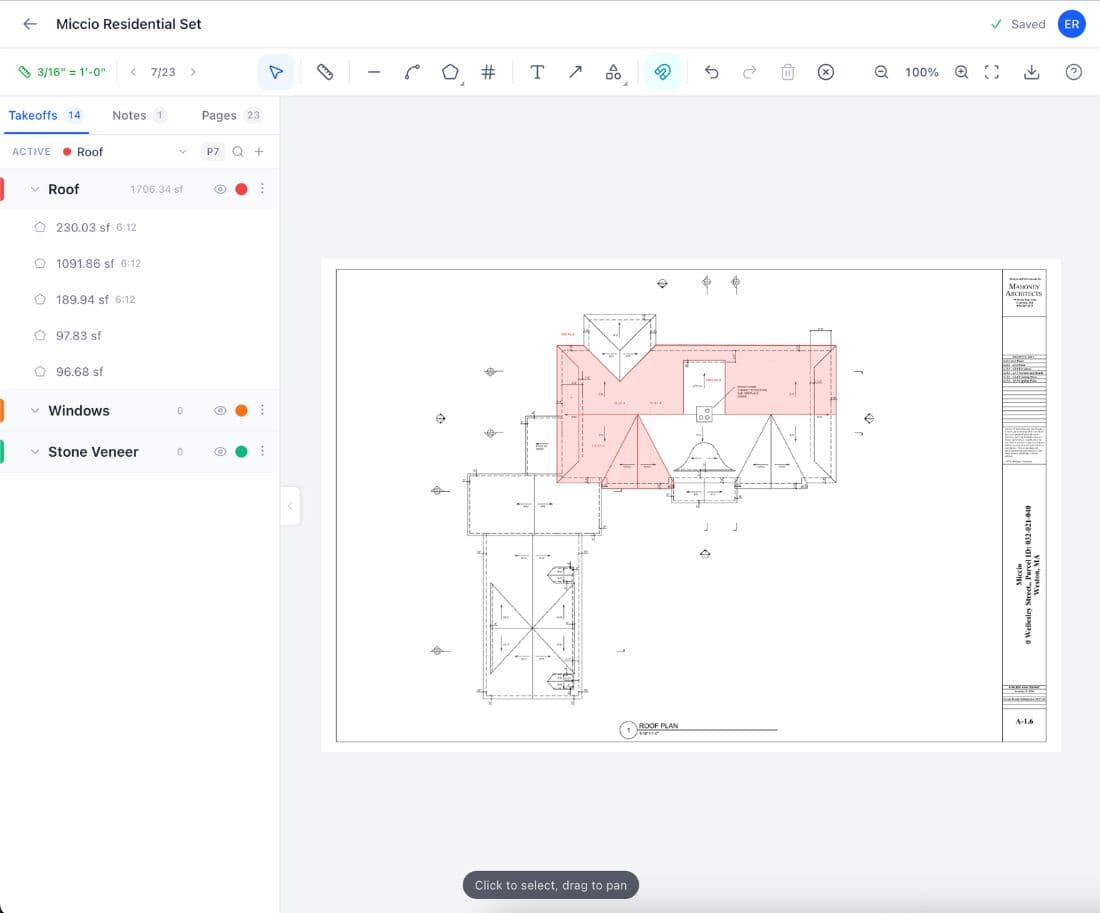
Name it by trade, scope, floor, or material. The tool picks the most visually distinct color from 16 options so each scope stands apart on the canvas. Add sub-groups for detailed breakdowns within a trade, like separating Hot Water from Cold Water under a Plumbing parent.
Measure into the Group
Select the active group from the sidebar and start measuring. Every line, area, and count you draw inherits that group's color automatically.
Review Running Totals
The sidebar shows cumulative length, area, count, volume, and wall area per group. Totals update in real time as you draw. Toggle visibility to focus on one scope at a time, or use Solo mode to isolate a single group on a busy drawing.
Export by Group
The CSV export organizes measurements by group with subtotals per scope and grand totals at the bottom. The annotated PDF renders each group in its own color on the original plans.
Why Do Organized Takeoffs Win More Work?
A mid-size commercial project produces 200 to 400 individual measurements across a dozen or more trade scopes. Without groups, those measurements sit in one flat list with one color on the canvas. Finding the drywall totals means scrolling past electrical, plumbing, painting, and demolition measurements that all look the same. On a 40 page plan set with fifteen active scopes, the search becomes the bottleneck. Measurement groups turn a flat list into an organized bid structure where every scope has its own color, its own running total, and its own visibility toggle.
The Construction Specifications Institute organizes all construction work into 50 MasterFormat divisions, from Division 01 (General Requirements) through Division 48 (Electrical Power Generation). Most commercial estimators structure their bids around these divisions, and measurement groups map naturally to the same approach. Name a group Electrical, another Plumbing, another Finishes, and your takeoff mirrors the bid structure. When the quantities are organized by scope from the start, they drop directly into your estimate without a manual sorting step.
When a general contractor issues a bid invitation, the scope of work is divided into bid packages that specialty contractors price individually. The electrical sub bids Division 26, the plumber bids Division 22, the drywall contractor bids Division 09. Each package requires quantities separated by trade with clear subtotals. If your takeoff is organized by group from the start, the CSV export already matches the bid package structure. There is no sorting step between measuring and pricing. The quantities go straight from the takeoff into the estimate, and the annotated PDF goes into the bid submission to show exactly what was measured.
Research compiled by the Lean Construction Institute estimates that 25 to 50 percent of labor time on construction projects goes to non-value activities, including searching for information and correcting errors. A survey by FMI Corporation of 599 construction leaders put a number on the problem: professionals spend 5.5 hours every week just searching for project data, scrolling through files, and reconciling numbers across disconnected documents. That search time is part of the non-value activities that cost the U.S. construction industry $177.5 billion in labor annually.
Measurement groups remove the search from your takeoff. Every scope is named, color-coded, and totaled in the sidebar. When you need the drywall footage, you look at the Drywall group. No scrolling, no filtering, no mental math. The line measurement tool handles linear runs, the count tool handles quantities, and groups keep every scope separated on the canvas and in the export. The quantities are organized from the first measurement through the final bid package.
Takeoff Tools Built for Every Trade
From flooring to full ground up builds, Easy Takeoffs handles the measurements your trade demands. Built for every trade, $39 a month.
What Can You Do with Measurement Groups?
Color, structure, running totals, visibility controls, and scope protection for every trade on the plan.
A 70-Color Palette Built for Plans
Ten hue families with seven tints each, every one tuned to stay readable against a white plan sheet. When you create a new group, auto-assign picks the color most distinct from your existing groups, so even with ten or fifteen scopes on the same drawing nothing blurs together. Sub-groups take related tints from their parent's family, which makes a trade and its breakdowns read as one visual unit. Colors carry through to the annotated PDF export, so printed plans show the same separation you see on screen.
Sub-Groups Nested Four Levels Deep
Create parent groups for broad scopes and nest sub-groups up to four levels deep for detailed breakdowns: Floor 2, then Unit 2A, then Plumbing, then Hot Water, Cold Water, and Waste inside it. Each sub-group gets a related color from its parent's family so connected scopes read together on the canvas. Assign a different hatch pattern to each sub-group, and area measurements render with distinct fills: crosshatch for tile, diagonal for carpet, dots for VCT. Six patterns are available. Totals roll up through every level, and the structure mirrors how estimators break a project into buildings, units, and trade line items for pricing.
Running Totals per Group
Every group tracks its own cumulative totals in the sidebar: total linear footage for line and polyline measurements, total square footage for areas, total count for markers, and volume and wall area when depth or wall height values are set. Sub-group totals roll up to the parent automatically. Totals update in real time as you draw, delete, or move measurements. Groups can also have assembly templates attached, so every measurement in the group gets automatic material calculations. The group panel shows material quantities alongside measurement totals, giving you both the raw dimensions and the materials they require without opening a calculator or manually adding rows in a spreadsheet.
Three-State Visibility
Each group has three visibility states: fully visible, dimmed to 30 percent opacity, or completely hidden. Click the eye icon on a group to cycle between states. Use Solo mode to show one group and hide everything else, which is useful when you need to verify a single scope on a busy drawing. The dimmed state keeps other scopes visible as context without competing for attention. Hidden groups are excluded from exports, giving you precise control over what appears in your output files.
Lock to Prevent Changes
Lock any group to protect its measurements from accidental edits. Locked measurements cannot be selected, moved, deleted, or modified. This is useful after a scope has been verified by the lead estimator and you do not want the numbers changed while other scopes are still in progress. The lock icon turns amber when a group is protected. Unlock at any time to resume editing. All lock and unlock actions are undoable, so there is no risk in locking a group while you finish the rest of the takeoff.
A Workspace That Stays Put
The active group has a permanent home in Details on the right: its summary totals, template, and materials with waste, all updating live as you draw. Placing counts means watching the number climb with every click. A small Page / All switch scopes everything it shows to the current sheet or the whole job, so "how much tile is on this floor" and "how much tile is on this project" are the same glance. Tablets dock the same workspace as a side panel, and phones open it as a bottom sheet, so the totals travel with you.
A Sidebar That Knows What Page You Are On
The group tree shows each group's measurements on the current sheet inline, with a quiet row noting what lives on other pages. Click any off-page item and you jump straight to it. Single-quantity groups show live totals right on their rows, one click collapses or expands the whole tree, and dragging a group header re-files it under a new parent. On a 23-page set, the sidebar always reflects the sheet in front of you instead of burying it in the whole project's list.
Duplicate a Group for the Next Variant
Repeat-variant work, like duct sizes, pipe runs, or wall types, means the same setup over and over. Duplicate Group copies a group's full setup in one click: its name, color, sub-groups, and template with your adjusted values, everything except the measurements. The copy lands below the original as the active group, ready to measure the next size without rebuilding a thing.
Why Do Unorganized Takeoffs Cost Real Money?
Without groups, every measurement lives in one flat list. Here is what that costs you on real projects.
The Color Blob
All 300 measurements on the canvas share the same color. Flooring, demolition, electrical, and plumbing overlap on the same sheet in the same blue. You cannot tell which lines are conduit runs and which are baseboard. To figure out what belongs to which scope, you hover over each measurement individually, read its label, and try to piece the picture together. A 40 page plan set with fifteen active scopes becomes a single mass of overlapping blue lines. Sorting through that visual noise to find your plumbing quantities takes longer than measuring them did in the first place.
Scrolling Through 200 Measurements
The sidebar lists 200 measurements in the order you drew them, not by scope. Pipe runs sit between duct measurements and wire pulls. You need the total linear footage for copper pipe, but finding every pipe measurement means scrolling up and down, clicking each one to check whether it belongs to the plumbing scope or the fire protection scope. By the time you have your total, you have already forgotten whether you included the run on sheet M-3. One missed measurement means your material order is short. One duplicate means you ordered pipe you did not need.
The Wrong Number Goes in the Bid
You need the flooring area for your tile bid. You add up all the area measurements and get 3,400 square feet. But three of those areas were demolition scope, two were ceiling paint, and one was an accent wall. The actual flooring total is 2,600 square feet, not 3,400. At $12 per square foot installed, that is $9,600 of error in the bid. You either overbid and lose the project, or you win it and eat the overage. With separate measurement groups, the Tile Flooring group shows its own total. No mixing, no miscount, no scramble to untangle overlapping scopes at the last minute.
Re-Measuring When the Scope Changes
The GC splits the mechanical scope into two subcontracts midway through the bid. Ductwork goes to one sub, piping to another. All your mechanical measurements sit in one undifferentiated list. You cannot separate duct from pipe without re-measuring every run on every page. The deadline is tomorrow. You stay late, re-draw 80 measurements, and hope you land on the same numbers as the first time. With groups, you would create a Ductwork group and a Piping group, batch-move the measurements where they belong in minutes, and submit both bids with accurate totals.
Measurement Group Questions
Start Your Construction Takeoff Today
Upload your first PDF plan set, set the scale, and pull accurate quantities before lunch. $39 a month after the trial, less than every dedicated competitor.