PDF Line Measurement Tool
for Construction Plans
Measure straight lines for individual dimensions or draw connected polylines for piping, conduit, fencing, and any other linear run. Snap to content precision, 15 degree angle locking, and running totals that follow you across every page of the plan set. No install, works in your browser.
How to Measure Lines and Dimensions on PDF Plans
Upload Your Plans
Drop your PDF into the browser. Every page renders at full resolution. Multi page plan sets load just like singles.
Set the Scale
Easy Takeoffs reads the scale notation from your drawing automatically, and AI reads it off scanned sheets. No match? Pick from common scales or type in the scale from your title block.
Draw the Measurement
Select the line tool and click two endpoints for a single dimension. Or select the polyline tool and click each point along a continuous run. Hold Shift to snap to precise angles.
Read the Total
The length appears on the canvas and in the sidebar. Group totals update as you add more measurements. Export to a spreadsheet or marked-up plan set when you are done.
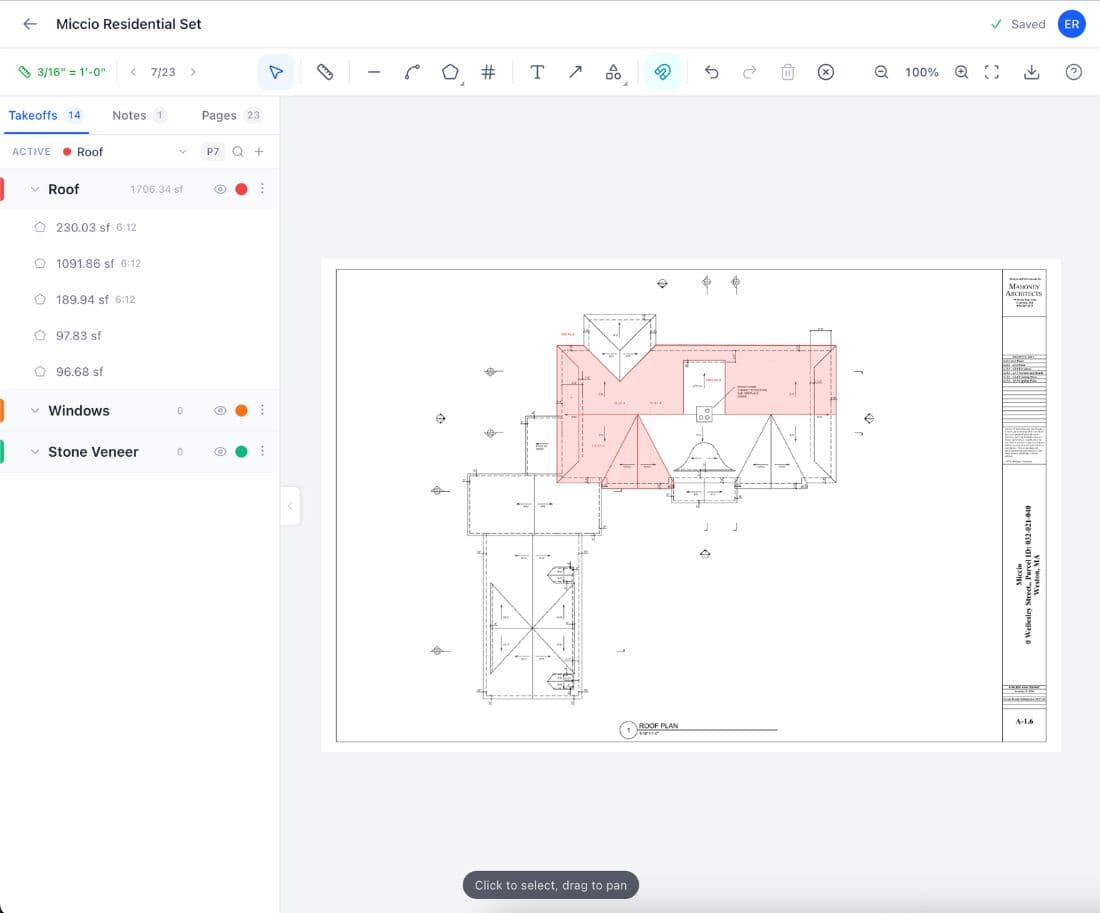
Why Accurate Linear Measurement Matters
Linear measurement drives material ordering for everything that runs in a straight line or follows a route. Pipe, conduit, wire, baseboard, crown molding, gutters, fencing, curbing, cable tray, ductwork, and refrigerant line all start with a length pulled from the construction plans. Short by 20 feet of three-quarter inch copper and the plumber waits for the next delivery. Over by 200 feet of EMT and the electrical contractor absorbs the scrap. The numbers on the takeoff sheet set the material order, and the material order sets the job cost.
Research published in the ASCE Journal of Construction Engineering found that direct rework costs average 5 percent of total construction costs across a sample of 359 projects, with some projects losing up to 20 percent. Inaccurate linear measurements contribute to that number every time a pipe run comes up short or a conduit order misses a routing change buried in an addendum. Easy Takeoffs gives you line and polyline tools that trace the route on the PDF exactly as drawn, with measurement groups that track cumulative footage per system.
Whether you are routing conduit per NFPA 70 (the National Electrical Code) or sizing ductwork to SMACNA duct construction standards, the first step is pulling accurate dimensions from the plans. Linear measurements also feed into material templates. Apply a wall framing template and your linear feet automatically calculate stud count, plates, and fasteners. The snap engine locks your cursor to wall lines, corners, and intersections so every segment lands exactly where the drawing shows it. The area tool handles surfaces, the count tool handles fixtures, and the line and polyline tools handle every linear dimension between them.
Takeoff Tools Built for Every Trade
From flooring to full ground up builds, Easy Takeoffs handles the measurements your trade demands. Built for every trade, $39 a month.
Every Run, Every Segment, One Total
The PDF line measurement tool handles both quick dimensions and long multi-segment routes.
Two Point Lines
Click a start point and an end point. The distance appears in real world units based on the scale you set. Use single lines for individual dimensions: wall lengths, door widths, beam spans, window openings, or any measurement where you need the distance between two specific points on the drawing. Each line stays on the canvas as a labeled annotation so you can see what has been measured.
Multi-Segment Polylines
Click point by point along a continuous run. Each segment adds to the running total. Measure a conduit route that turns four corners, drops down a riser, and crosses three rooms on the plan. The polyline follows the path exactly as drawn. Press Backspace to undo the last point if you misclick. Press Enter to complete the run. The total length of every segment appears as a single measurement.
15 Degree Angle Snapping
Hold Shift while drawing to lock your line to 15 degree increments. Horizontal, vertical, and 45 degree segments snap precisely without guesswork. On a plan with a grid layout, this means every conduit run and pipe route follows exact angles. Release Shift to draw at any angle for diagonal runs, offsets, or angled walls that do not fall on the grid.
Running Linear Totals
Create a measurement group for each system. Hot water supply in one group, cold water in another, electrical conduit in a third. Each group tracks its own cumulative linear footage as you measure runs across the plan set. The sidebar shows every measurement with its length, label, and page number. You always know the total for a system without opening a calculator or adding anything up by hand.
True Curved Segments
Curbs, cul-de-sacs, arched entries, and radius walls are drawn as real arcs, the same geometry the sheet prints. While drawing, press A and click the top of the curve, then keep going. On a line already placed, drag the middle of a segment to bow it onto the printed curve, and right-click for Straighten Curve or Set Radius when the sheet calls out an R value to match. Lengths come from exact arc math on screen and in every export, so a curved run reports its real length, not an approximation from short straight pieces.
Pitch for Sloped Runs
A run that climbs is longer than its plan view shows. Set a pitch on a line or polyline and the software applies the slope factor for you, reporting the true sloped length for roof edges, ramps, and sloped pipe. Any standard pitch is a pick and any custom pitch can be typed, so a 7.5/12 shed roof is no harder than a 6/12. The slope-corrected number is what feeds your totals, templates, and exports.
Why Scaling by Hand Fails on Real Projects
Scale wheels, rulers, and manual takeoffs work until the plans get complicated. Here is what goes wrong on real jobs.
The Scale Wheel Does Not Follow Corners
You roll a scale wheel along a conduit run on a printed blueprint. The route turns 90 degrees at a junction box. The wheel slides off the line, or you lift it and lose your place. You back up, re-roll the straight section, and try the corner again. On a run with eight turns across two pages, you might roll the same stretch three times before you get a number you trust.
You Miss Segments on Multi-Page Plans
The hot water supply line starts on sheet M-2, continues through a riser on M-3, and feeds fixtures on M-4 and M-5. You measure each page separately, write the lengths on a notepad, and add them up later. But you missed the 18 foot drop on the riser detail because it was on a separate sheet. The total is short by 18 feet, and you do not find out until the pipe shows up and does not reach.
You Add Up Segment Lengths by Hand
You have measured 23 individual conduit segments for a branch circuit. Each one is written on a sticky note or the margin of the print. You type them into a calculator one at a time. You transpose 14.5 as 15.4. The total is off by enough to matter when you are ordering $8 per foot EMT. A $50 discrepancy on one branch multiplied across 30 branch circuits is $1,500 off the bid.
There Is No Record of What Was Measured
The project manager asks where the piping total came from. You look at the plans. There are no marks showing which routes were included in the count. Maybe the return lines were measured. Maybe they were not. The only way to answer is to measure everything again from scratch, and this time someone has to watch to confirm the path is right.
PDF Line Measurement Questions
Start Your Construction Takeoff Today
Upload your first PDF plan set, set the scale, and pull accurate quantities before lunch. $39 a month after the trial, less than every dedicated competitor.