Construction Takeoff Export
to PDF and CSV
Export your takeoff measurements to a CSV spreadsheet with 12 data columns, group subtotals, and grand totals, or to an annotated PDF with every measurement drawn directly on the original construction plans. Group colors, hatch patterns, labels, and dimensions carry through to both formats. One click, no reformatting, no manual data entry.
How to Export Construction Takeoff Data
Choose Your Format
Click the export button in the toolbar. Select CSV Spreadsheet for a data file you can open in Excel or Google Sheets, or select Annotated PDF for marked-up plans with your measurements drawn on the original drawings.
Set Your Page Scope
Choose to export all pages in the plan set, only pages that contain measurements, or just the current page. This lets you send a single floor to a subcontractor without exporting the entire project.
Configure Options
For CSV, toggle group subtotals and page numbers. For PDF, choose whether markups ride along, turn on the corner legend and pick its corner, and keep or skip the Takeoff Summary and its markup list. Both formats exclude hidden groups automatically.
Download
Click Download. The file saves to your device in one click. Attach the CSV to your estimate or the annotated PDF to your bid package. Both files are ready to use without reformatting.
Why Does Clean Export Data Win More Bids?
Every construction takeoff ends with the same question: how do you get these numbers into the estimate? The measurements are accurate, the scopes are organized, the quantities are verified. But the data sits inside the takeoff tool. Getting it out typically means copying numbers by hand into a spreadsheet or printing the plans and marking them up with a pen. Both methods introduce errors. The measurement groups and labels you built during the takeoff disappear into a flat file or a messy printout.
The Federal Highway Administration sets a baseline for estimation accuracy: engineer's estimates should land within plus or minus 10 percent of the low bid on at least half of all projects. When takeoff data crosses from measurement tool to estimating software through manual re-entry, every keystroke is a chance to drift outside that range. A transposed digit, a missed measurement, or a unit conversion error compounds through the entire estimate.
A 2025 report by the U.S. DOT Volpe Center found that errors, omissions, and overly optimistic assumptions during cost estimating are a leading cause of construction change orders, identifying a lack of internal process standards and controls as a root cause. Organized export is one of those controls. When every measurement exports with its group name, label, scale, and page number, the data trail from takeoff to estimate is auditable. If a number looks wrong in the bid, you can trace it back to the specific measurement on the specific drawing.
Easy Takeoffs exports in two formats because takeoff data serves two audiences. The CSV serves the estimator: every measurement in a spreadsheet with group subtotals, raw decimal values for calculations, and enough metadata to trace each number back to its source. The annotated PDF serves the rest of the bid team: exactly what was measured and where, drawn on the original plans with group colors, labels, hatch patterns, and dimensions. The measurement groups you build during the takeoff carry through to both exports. There is no intermediate step where you reorganize, reformat, or re-enter the data.
Takeoff Tools Built for Every Trade
From flooring to full ground up builds, Easy Takeoffs handles the measurements your trade demands. Built for every trade, $39 a month.
What Do You Get in Each Export Format?
Two export formats built for two different stages of the bid process.
CSV with Group Subtotals
The CSV export organizes every measurement by group. Each row includes the group name, measurement type, label, formatted value with units, raw decimal for calculations, scale name, and page number. When depth or wall height values are set, volume and wall area columns populate automatically. Enable subtotals to add a summary row at the end of each group with cumulative linear footage, square footage, volume, wall area, and count. When a group has an assembly template applied, the CSV also includes calculated material quantities with waste factors so your material list exports alongside the measurement data. A grand total row at the bottom gives you project-wide quantities across all groups. The file uses UTF-8 with BOM encoding so Excel reads it correctly on the first open.
Annotated PDF with Measurement Markups
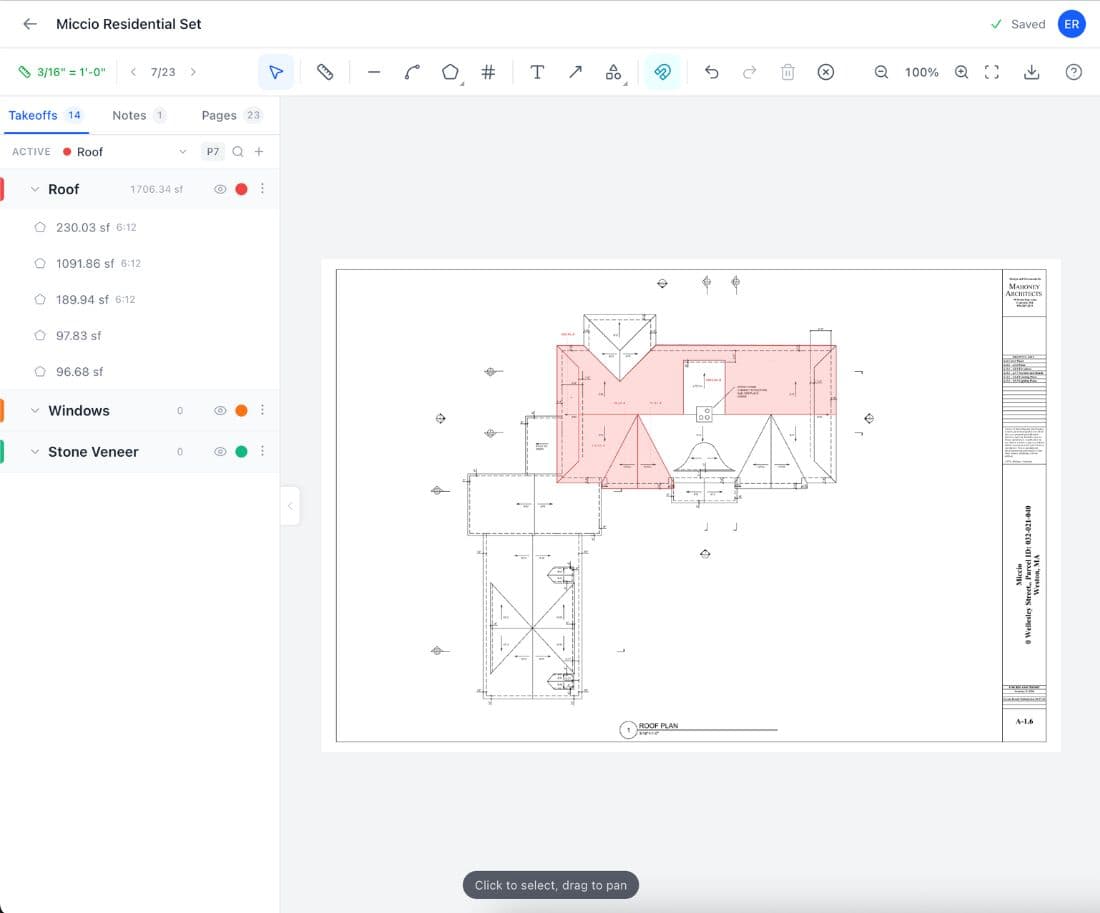
The PDF export draws every measurement directly on the original construction plans. Lines and polylines show architectural-style dimension text rotated along the measurement path. Areas display square footage at the visual center with translucent color fills. Count markers appear with their assigned symbol shape: circle, square, triangle, diamond, or plus. Labels, volume, wall area, and diameter values render below the primary measurement in smaller text. Group colors carry through to the export, so every scope stays visually separated on the plans. Your markups ride along too, with an Include markups option that is on by default; switch it off and the same export produces clean, measurement-only sheets.
One Takeoff Summary at the End
The exported PDF closes with a single report: group totals first, with each group's job-wide quantities in sidebar order, then the material breakdown for every group with an assembly, waste factors shown. Choose to list your markups and they close out the same report, itemized by page with their text and color. It is one summary, not three loose appendices, and it skips itself entirely when there is nothing to list.
A Legend Printed on the Sheet
Turn on the measurement legend and each exported sheet prints its own totals in the corner you pick: every group that appears on that sheet, with its color swatch, hatch pattern, and per-sheet quantities. Whoever opens the drawing sees the numbers without opening anything else, which is exactly what a supplier or a foreman wants from a marked-up sheet. The legend is built from the same measurements as the ink, so it can never disagree with the drawing.
Hatch Patterns in PDF Fills
Area measurements with hatch patterns assigned to their group render with those patterns in the exported PDF. Crosshatch for tile, diagonal lines for carpet, dots for VCT, and three more options. Combined with translucent group color fills, each surface type is visually distinct even on drawings with overlapping scopes. The fills print clearly on both color and grayscale printers. This matters when the annotated PDF becomes part of the bid package and the recipient needs to identify which areas belong to which scope without opening any software.
Page Scope Control
Choose which pages to include in your export. Export the entire plan set, only pages that contain measurements, or just the current page you are viewing. This gives you precise control when you need to send quantities for a single floor to a subcontractor or export one sheet for an RFI response. The same scope options apply to both CSV and PDF exports. Page numbers are included in the CSV as an optional column, so you can trace every measurement back to the drawing it came from.
Excel-Ready Formatting
The CSV file is designed to work in Excel without formatting adjustments. The Measurement column shows formatted display strings like 12 feet 6 inches or 245.50 square feet for readability. The Value column contains raw decimal numbers for summing, averaging, and feeding into estimating formulas. Formula injection protection prevents spreadsheet security issues by prefixing special characters with an apostrophe so they are treated as text. The file opens correctly in Google Sheets, Numbers, LibreOffice, and any RFC 4180 compatible application.
Why Does Manual Data Transfer Cost Real Money?
The takeoff is only as valuable as the data that reaches the estimate. Here is where that data gets lost.
The Copy-Paste Marathon
You finished the takeoff. Now you need the numbers in a spreadsheet. You open Excel, go back to the takeoff tool, and start typing: 342 square feet flooring, 186 linear feet baseboard, 24 count outlets. Measurement by measurement, page by page, you transcribe 150 rows of data by hand. An hour later you have a spreadsheet. But you also have three typos, two measurements from the wrong page, and a nagging suspicion that you missed the runs on sheet M-4. The takeoff took 45 minutes. The data entry took longer.
The Wrong Number in the Estimate
You measured 342 square feet of tile in the takeoff tool. You typed 3,420 square feet into the estimate. One extra zero. At $14 per square foot for material and labor, that typo inflates the bid by $43,000. You lose the project because your number was ten times too high. Or the decimal slips the other direction, you win the project at $34,200 below the real cost, and you absorb the difference out of margin. Manual transcription between takeoff and estimate is where accurate measurements become inaccurate bids.
The Unmarked PDF
The GC asks for a set of plans showing what you measured. You send the original PDF with no markups because your takeoff tool does not export them. The GC cannot tell which rooms were included, where the measurements start and end, or whether you accounted for the closets and hallways. They call you back with questions. You explain each measurement over the phone, referencing sheet numbers and room labels from memory. An annotated PDF with your measurements drawn on the plans would have answered every question before it was asked.
Exporting Without Organization
Your takeoff tool exports a flat list of 200 measurements in the order you drew them. No groups, no subtotals, no separation between electrical and plumbing. You open the spreadsheet and start sorting manually: dragging rows, inserting subtotal formulas, creating section headers for each trade. By the time the spreadsheet matches the bid structure, you have spent 30 minutes reorganizing data that should have come out organized. A tool that exports by group with subtotals already in place eliminates that entire step.
Construction Takeoff Export Questions
Start Your Construction Takeoff Today
Upload your first PDF plan set, set the scale, and pull accurate quantities before lunch. $39 a month after the trial, less than every dedicated competitor.